1. Set up the label sheet
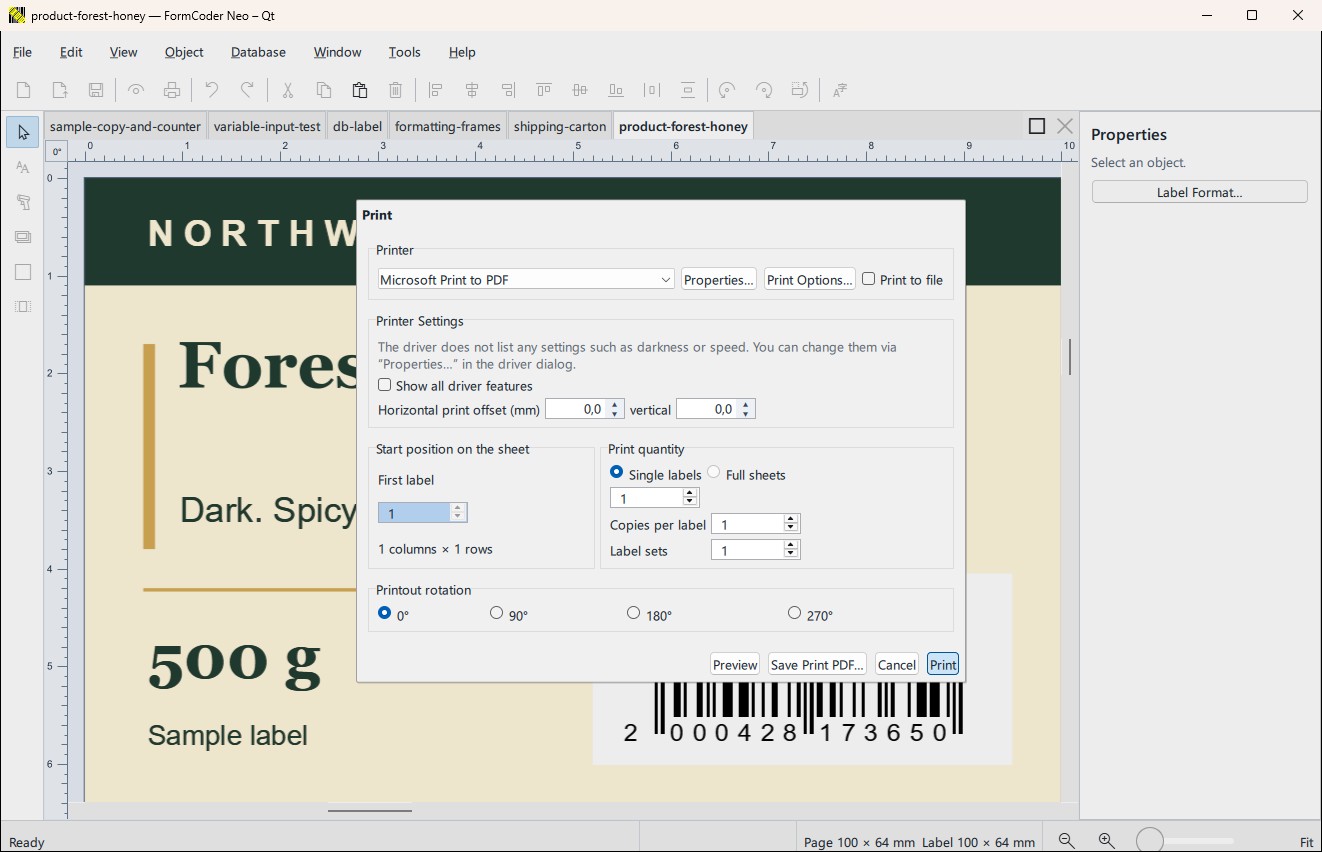
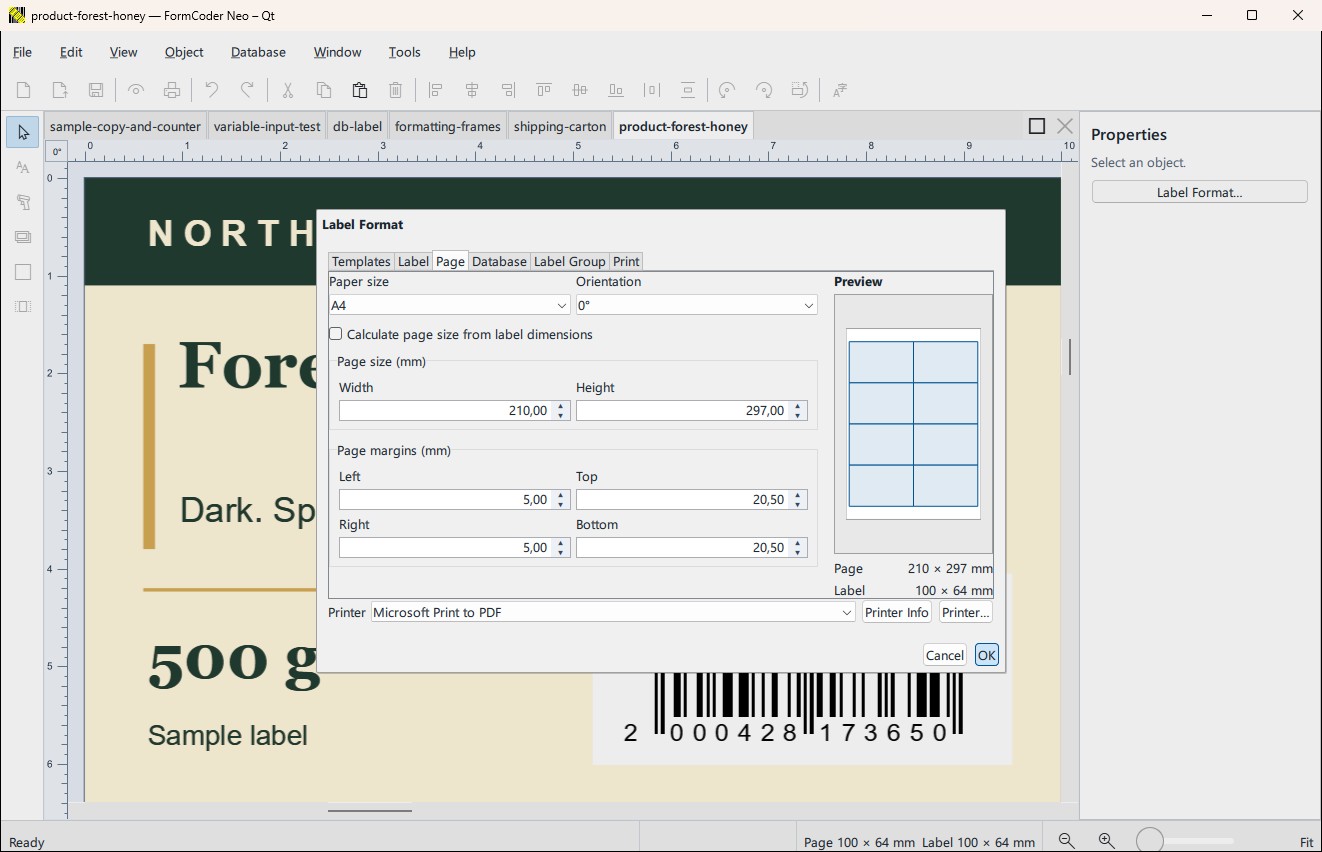
Open File → Label Format. On the Page tab, turn off Calculate page size from label dimensions and choose A4 in portrait orientation. If A4 is missing, select a printer set up for A4.
On the Label tab, enter the dimensions, columns, rows and gaps. Use the margins specified for your label stock. The values shown here are for the sample sheet.
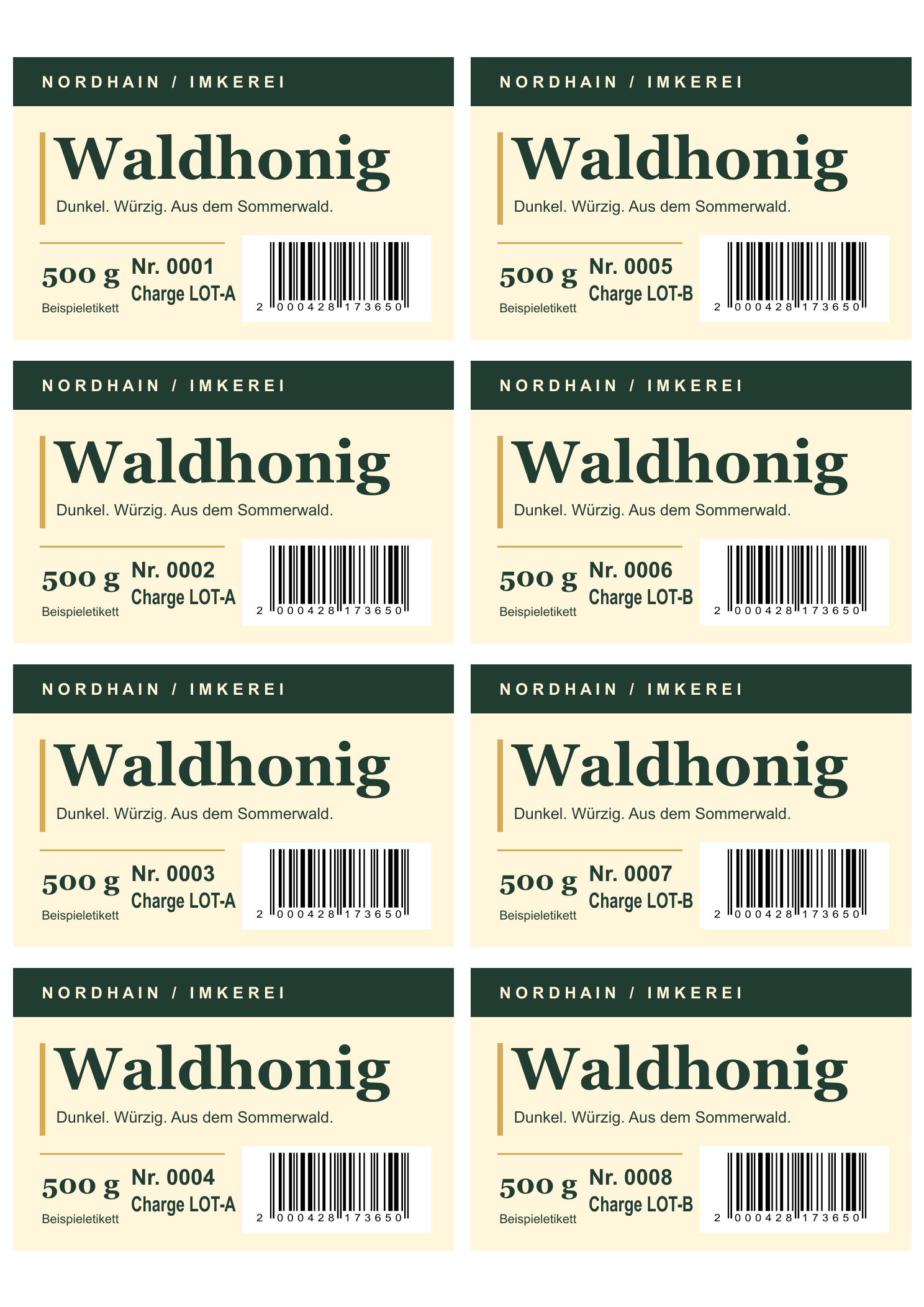
Design the first label with a product name, barcode and two text objects for the serial number and batch. Select the objects that should appear on every label and choose Object → Repeat on other labels (F9).
- Page
- 210 × 297 mm
- Label
- 100 × 64 mm
- Grid
- 2 columns, 4 rows
- Gaps
- 4 mm horizontal, 5 mm vertical
- Margins
- left and right 3 mm
- Margins
- top and bottom 13 mm
2. Prepare serial numbers and batches in a CSV file
Create a UTF-8 CSV file with semicolon separators. The first line names the two columns. Each subsequent line is one label.
Keep serial numbers as text in the spreadsheet and check the exported file. The CSV should already contain 0001 with its leading zeros. Enter the batch to print on each label.
SerialNumber;Batch
0001;LOT-A
0002;LOT-A
0003;LOT-A
0004;LOT-A
0005;LOT-B
0006;LOT-B
0007;LOT-B
0008;LOT-B
3. Import the CSV into SQLite and assign the fields
- Open Database → Create or Edit Database…. Create or open an SQLite file. Use Open CSV…, select the two columns and use Create Table to make a table named
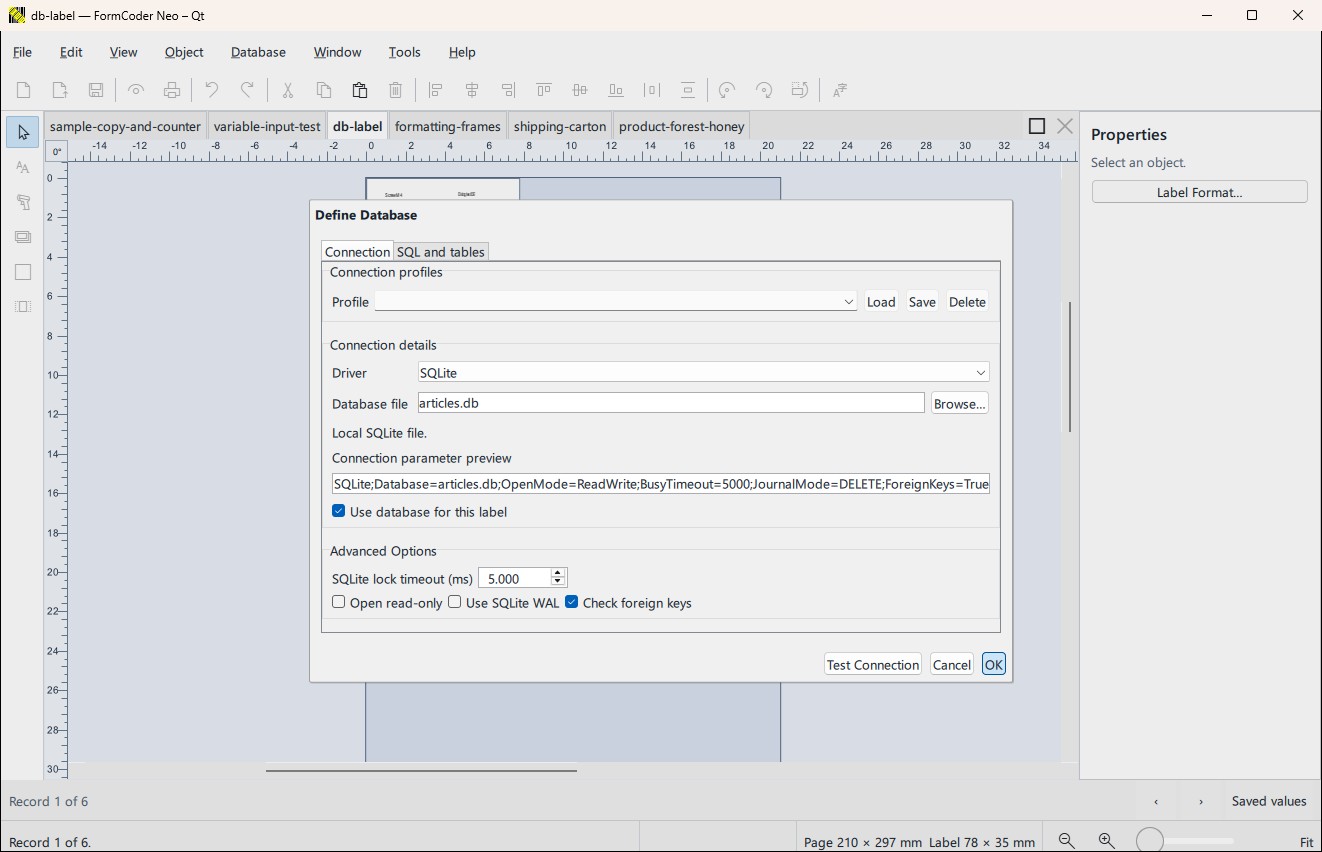
Labels. - Open Database → Define Connection…. Choose SQLite and your file, enable the database for the label and test the connection. In SQL and tables, select the
Labelstable. In this example, useSELECT SerialNumber, Batch FROM Labels ORDER BY SerialNumberto specify the order. - Double-click each text object. On the Data Source tab, select Database field and assign its column. Set Field type to Text for the serial number to keep the leading zeros.
4. Print one record per label
- In File → Label Format → Database, select Change record within the page. Each record fills one label position.
- Open Database → Print Records → Select Start Label…. Set the printer, record range and first free position. For a new sheet, use the first label position.
- Select Preview and check the serial numbers, batches and placement. Starting at the top left and filling by column puts numbers 0001 to 0004 in the left column, followed by 0005 to 0008 on the right. The Qt edition lets you set the starting corner and fill direction on the Print tab in Label Format.
- Click Print or use Save Print PDF… to save the full run.
Before the first print run. Check alignment on plain paper first. When printing from a PDF, choose Actual size or 100%.