Label software for retail and industry

Design labels.
Print barcodes.

The first version of FormCoder was completed in 1998. Customers in retail and industry used it for their label printing. Now FormCoder Neo is a completely redeveloped version for Windows, Linux and macOS. The interface and program help are available in English and German.

  • Windows
  • Linux
  • macOS
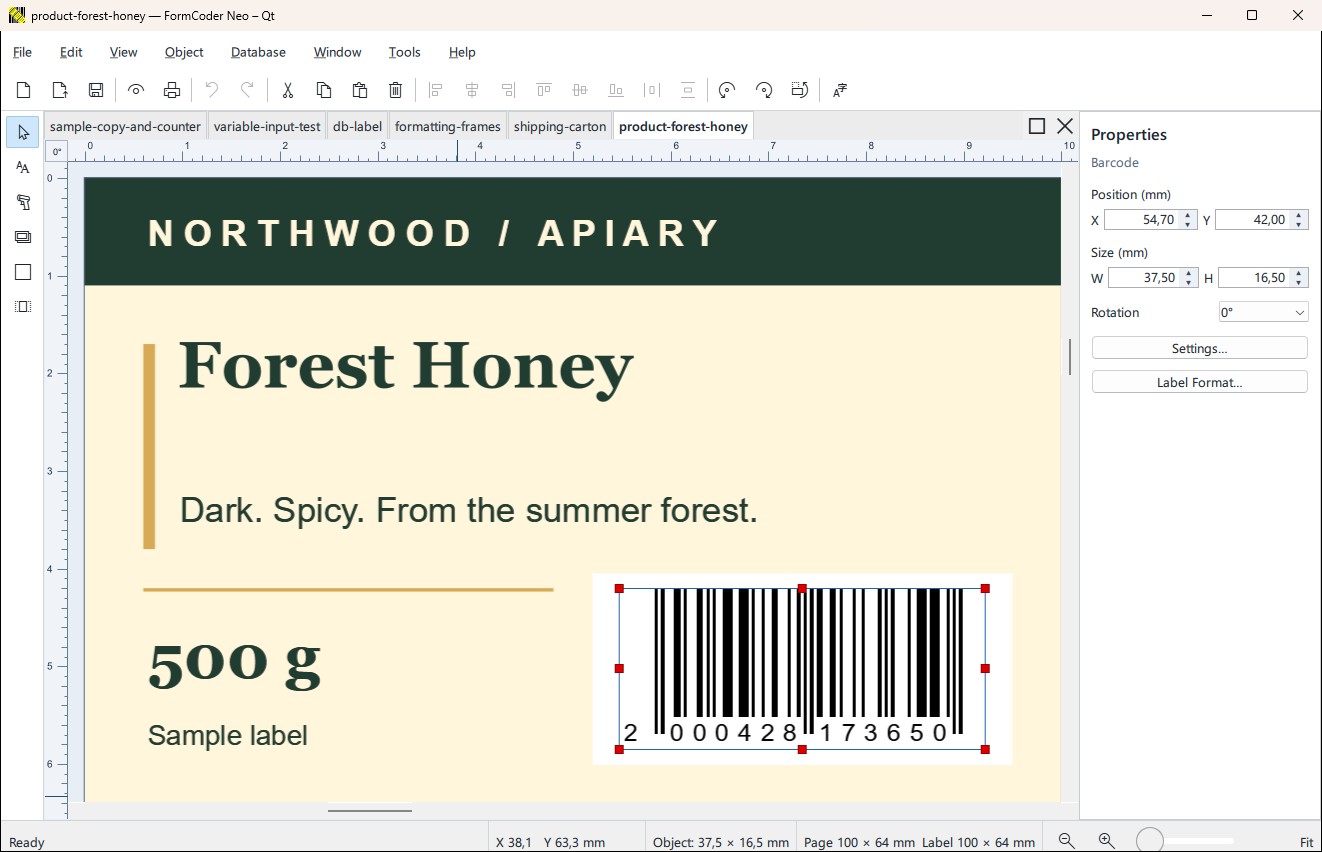
FormCoder main window with the English interface and the open Forest Honey label, with the EAN-13 barcode selected and the position and size fields visible on the right
FormCoder Neo with an open sample label. The selected barcode shows handles and dimensions in millimeters.

Download FormCoder Neo

Windows

FormCoder Neo Qt 0.15.0

Windows x64 · MSI · 47.5 MB · English and German

Install the Qt version (MSI)

The MSI installs for your user account without administrator rights and adds Start menu entries. It is not signed, so Windows may ask once when you open it. After that, the installed program starts without a warning.

Without installation: Download the ZIP to extract · 57.4 MB

Classic Windows version 1.0.29.0

Windows x64 · MSI · 24.8 MB · English and German

Download the 64-bit Windows MSI

macOS

No macOS installation package is currently available here.

Features

From design to print

Design product, warehouse and shipping labels. Link text and barcodes to your data and print single labels or entire series.

Visual label editor

Place text, graphics, shapes and barcodes anywhere on the work area. Resize objects with handles or enter position and dimensions in millimeters.

See the editor and dialogs

Variable content

Use entire field values or combine parts of several fields. Add serial numbers, date and time with a free date mask, and validated input from the keyboard or a scanner.

Input rules and date mask

Databases and CSV

Import and update CSV tables in SQLite. Save connection profiles, test SQL queries and select records for printing. Server databases can be connected with a suitable driver.

Printing, preview and export

Print on label rolls or label sheets, including several copies per label or entire label sets. Set darkness and print speed directly in FormCoder. Check data and follow-up labels in the preview. Save the job as a PDF or export the label as a 300 dpi graphic.

See printers and the A4 sheet

Use your existing labels

Open Neo ETK files of versions 11 to 17. Classic KRUG labels of versions 6, 10 and 11 can be imported and saved as a separate Neo file. You can import a PDF page as an image or as editable text, rectangles and barcodes.

New since November 23, 2026

Extended features with ETK version 17

These features are available in FormCoder Neo Qt 0.14.0 and in the classic Windows version 1.0.23.0 and later. A label that uses one of them is saved as ETK version 17. Older FormCoder versions cannot open such files. Labels without these settings remain version 16.

New in FormCoder Neo Qt 0.15.0 and the classic Windows version 1.0.28.0: PDF import, free rotation and styled shapes. Older versions open labels with freely rotated or styled objects without this appearance.

English and German: In FormCoder Neo Qt and in the classic Windows version 1.0.24.0 and later, you switch between the English and German interface with “View → Sprache / Language”. Menus and dialogs change immediately, and your choice is saved. The program help is also available in English, with pictures of the English interface.

Import PDF

Import a PDF page as a new label in page size, either as an image at 150, 300 or 600 dpi or as editable objects. Text with its position and rotation, simple rectangles and readable barcodes such as EAN, Code 128, QR Code, Data Matrix or PDF417 become individual objects.

Free rotation

Rotate text, barcodes, images and shapes by any angle, optionally around their center. The selection frame and handles follow the rotation, and the screen, preview and printout show the object the same way.

Styled shapes

Draw rectangles, lines and ovals solid, dashed, dotted or without an outline. Round the corners, choose the fill opacity and draw lines horizontally, vertically or diagonally.

Validate input

For user input, define the prompt, allowed characters, length, number range or a selection list, plus prefix, suffix, fill character and the order of the prompts. Invalid input prevents printing. Values can also be loaded from a file.

Free date mask

Format date and time with placeholders such as TT.MM.JJJJ, month names, calendar week or day of the year. Add days, months and years, such as “today + 6 months” for a best-before date.

Print objects selectively

Print an object only if another field is empty, filled or equal to a value. Load images from a data field at print time. Limit the smallest and largest font height when fitting text, and use inverted text, such as white on black.

Easier design

Group and lock objects, move them forward or backward layer by layer, and transfer font, colors and sizes to other objects. A grid with snap function and the red line for the printable area help you align objects. A wizard guides you through new labels.

Printer settings in the program

Choose darkness, print speed, dithering or cutting directly in FormCoder, provided the driver offers these features. Set a print offset for each printer and, if you like, save the driver settings in the label.

Sheets and pre-printed forms

Define the start corner and fill direction on the label sheet. Place a pre-printed form as a background image under the label, for orientation only or included in the printout. If a font used in the label is missing, FormCoder tells you when you open it.

Label editor

Place and scale objects freely

Choose a tool on the left and click the work area to place the object. A double-click opens the settings of the selected object.

Move and resize

Drag an object to its position. Side handles change the width or height, corner handles change both. Alternatively, enter X, Y, width and height in the properties panel. The arrow keys move objects in steps of 0.1 mm.

See all eight handles

Align multiple objects

Select objects with Ctrl+click or with the selection rectangle. Move the selection together or align it to edges and center lines. With three or more free objects, you can distribute the spacing evenly.

Check details on the work area

The rulers show your position on the label. Use the mouse wheel to zoom from 30 to 400 percent. Hold down the mouse wheel to pan the visible area.

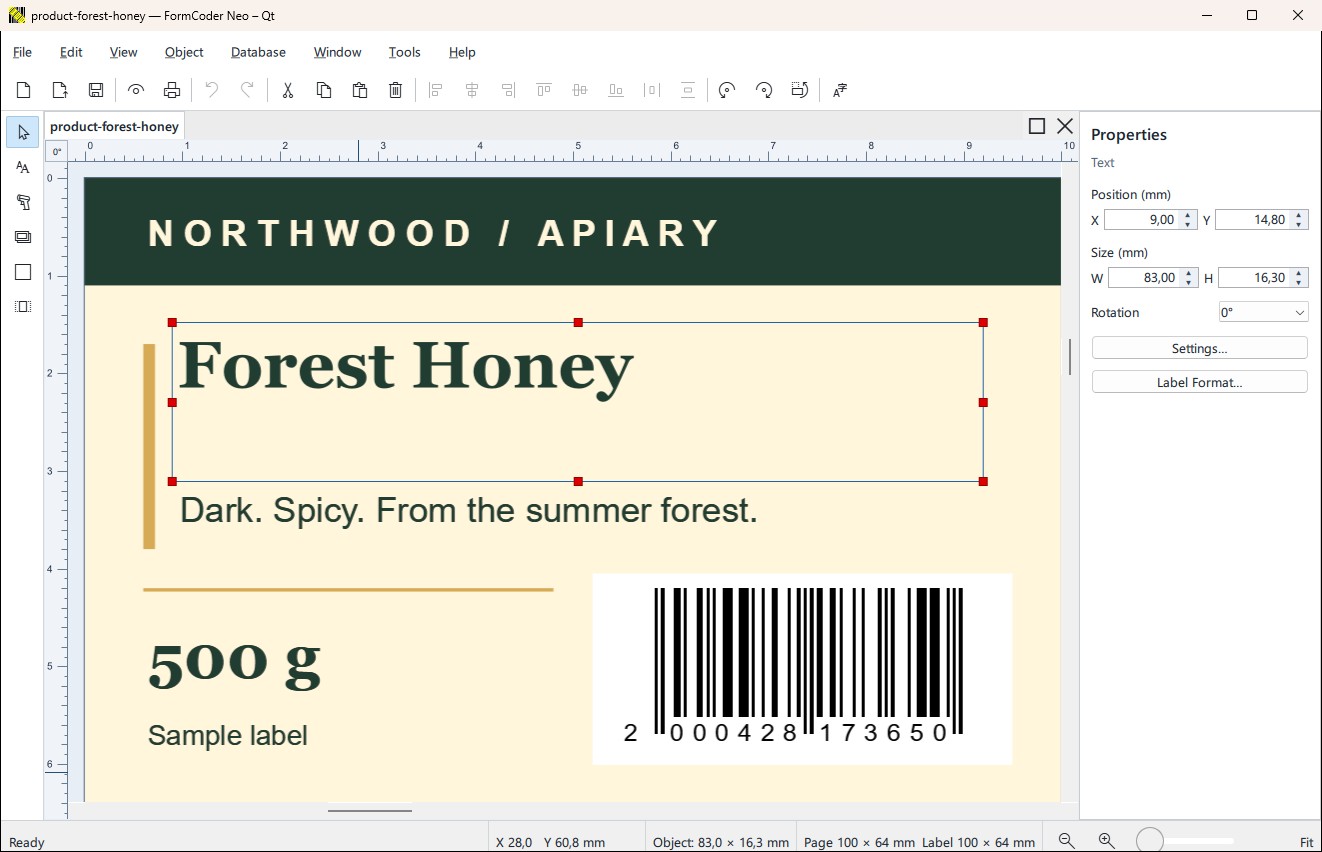
The eight handles on the selection frame

When you click a freely placed object, it shows eight red handles. While you drag, the opposite edge or corner stays in place. The blue numbers in the picture refer to the list.

FormCoder window with the Forest Honey sample label: the title text “Forest Honey” is selected and shows a rectangular selection frame with eight red handles
Original screenshot from FormCoder Neo. The properties panel on the right shows the position and size of the selected text in millimeters.
  1. Top leftChange width and height. The bottom right corner stays fixed.
  2. Top centerChange the height only. The bottom edge stays fixed.
  3. Top rightChange width and height. The bottom left corner stays fixed.
  4. Right centerChange the width only. The left edge stays fixed.
  5. Bottom rightChange width and height. The top left corner stays fixed.
  6. Bottom centerChange the height only. The top edge stays fixed.
  7. Bottom leftChange width and height. The top right corner stays fixed.
  8. Left centerChange the width only. The right edge stays fixed.

With the rotate commands in the toolbar, you rotate text, graphics, drawing objects and barcodes in 90° steps. See a label in the print preview

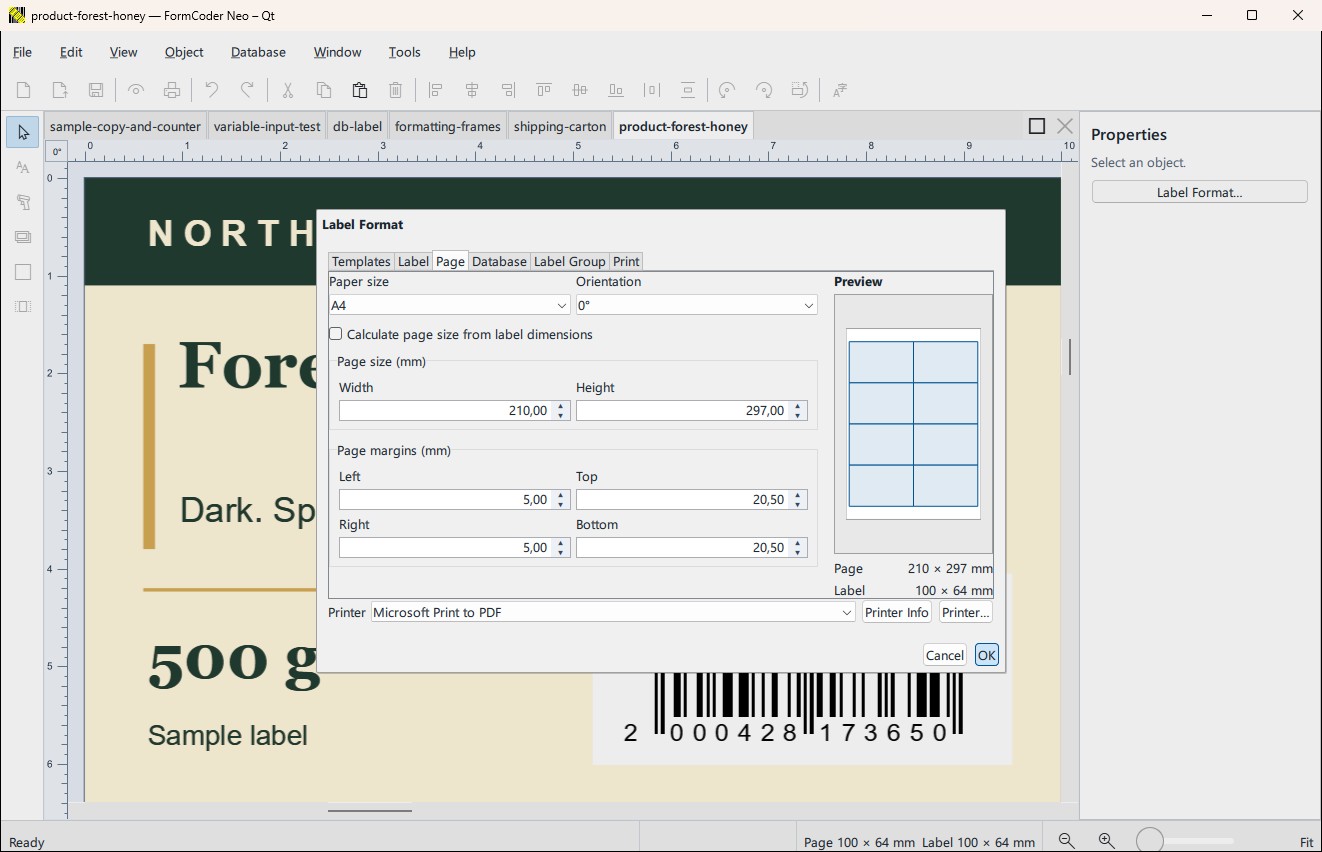
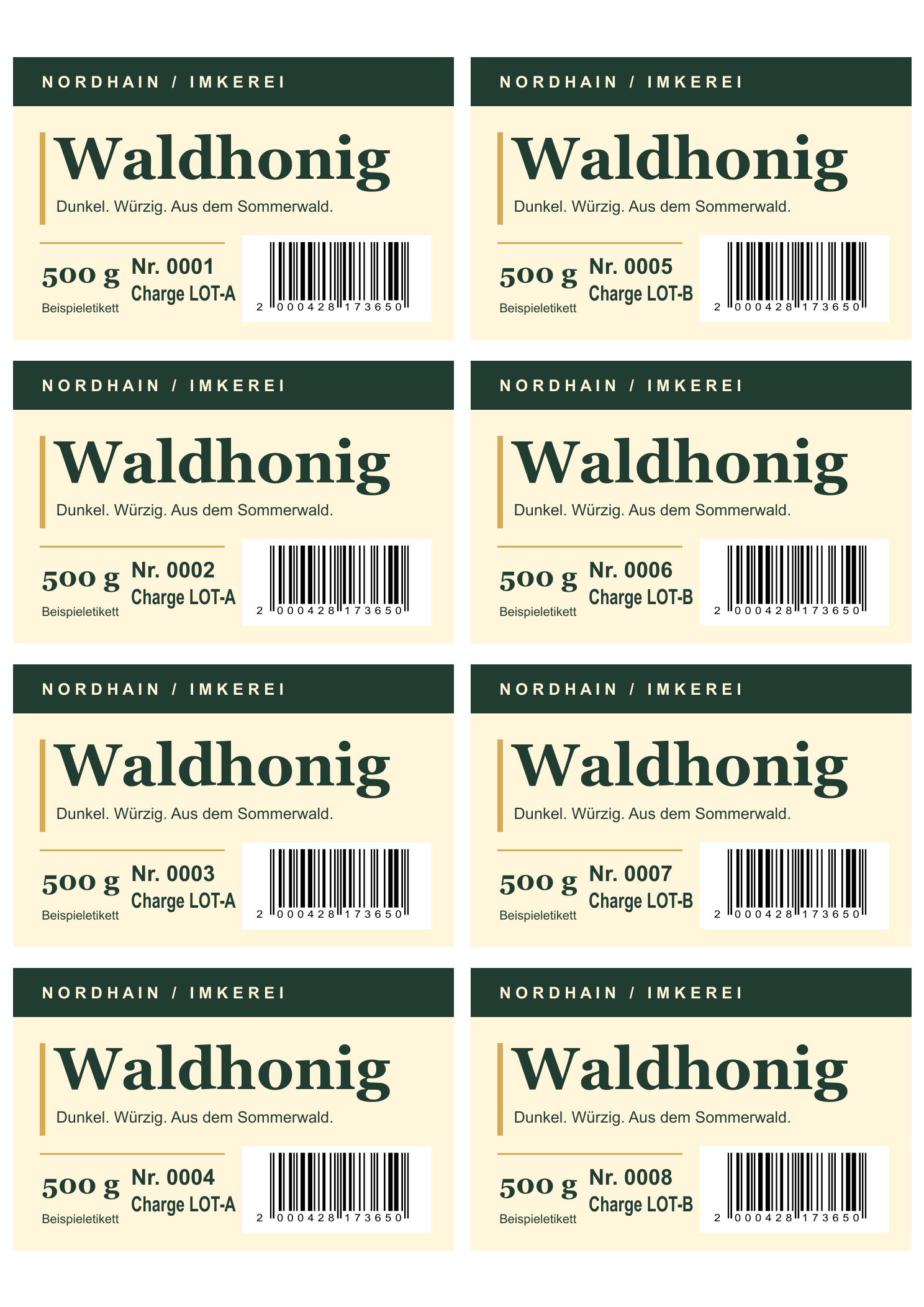
FormCoder Label Format window on the Page tab with A4 paper and a preview of a sheet with 2 × 4 labels of 100 × 64 mm
Label FormatSet label dimensions, sheet grid, gaps and page margins.
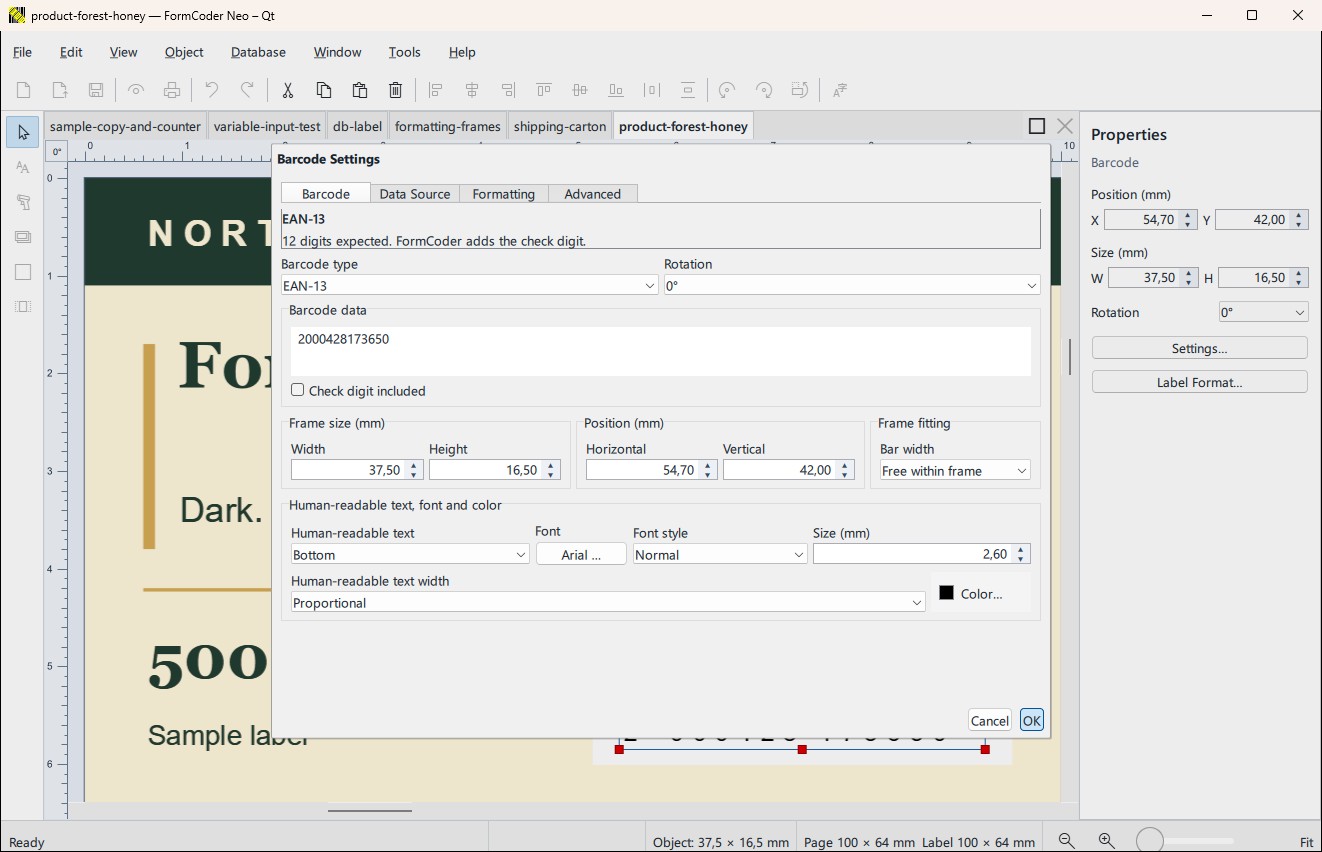
FormCoder Barcode Settings for an EAN-13 barcode with fields for check digit, frame size and human-readable text
BarcodeChoose the type and data, set the check digit, size and human-readable text.
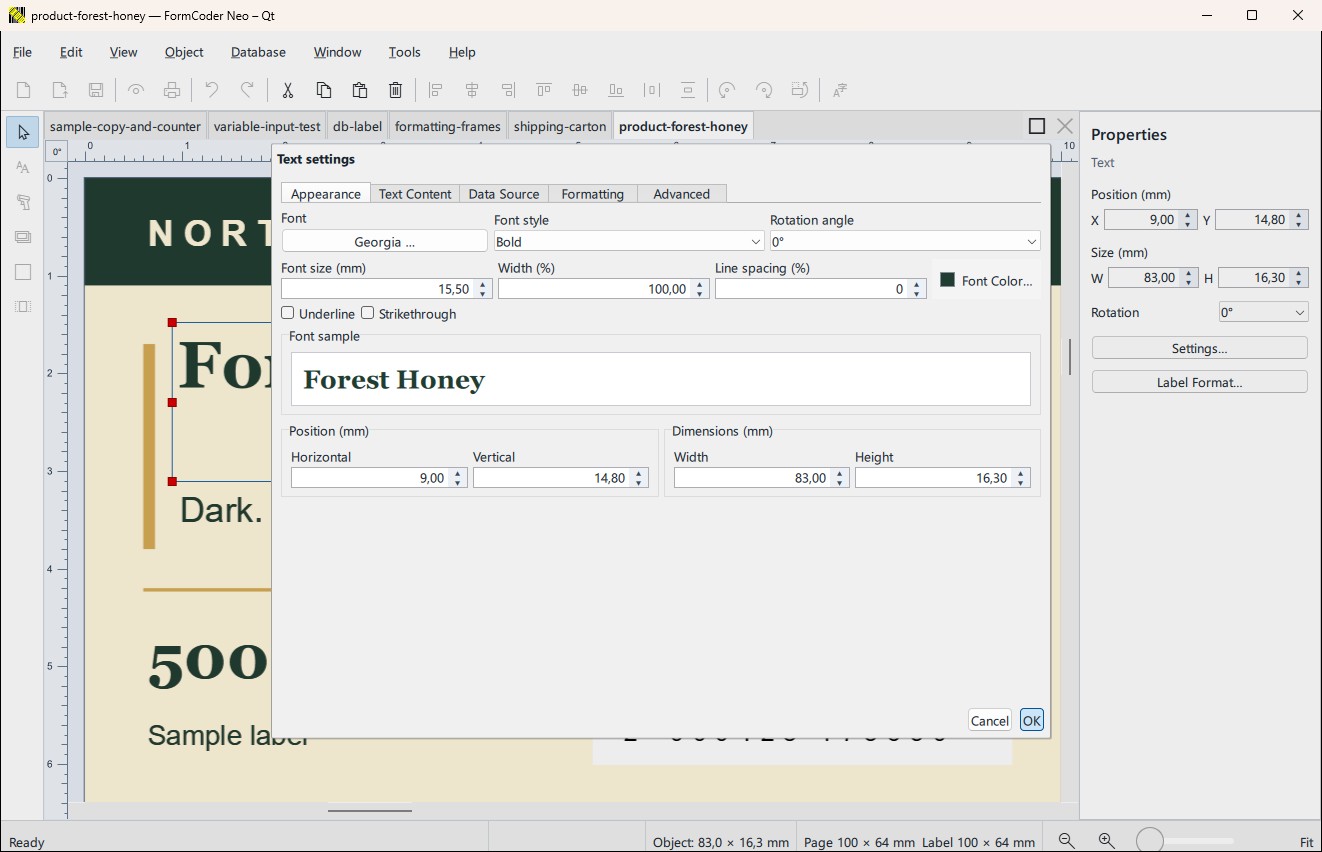
FormCoder Text Settings on the Appearance tab with the font Georgia bold and the font sample “Forest Honey”
TextStyle the font, color, width and line spacing of text fields.
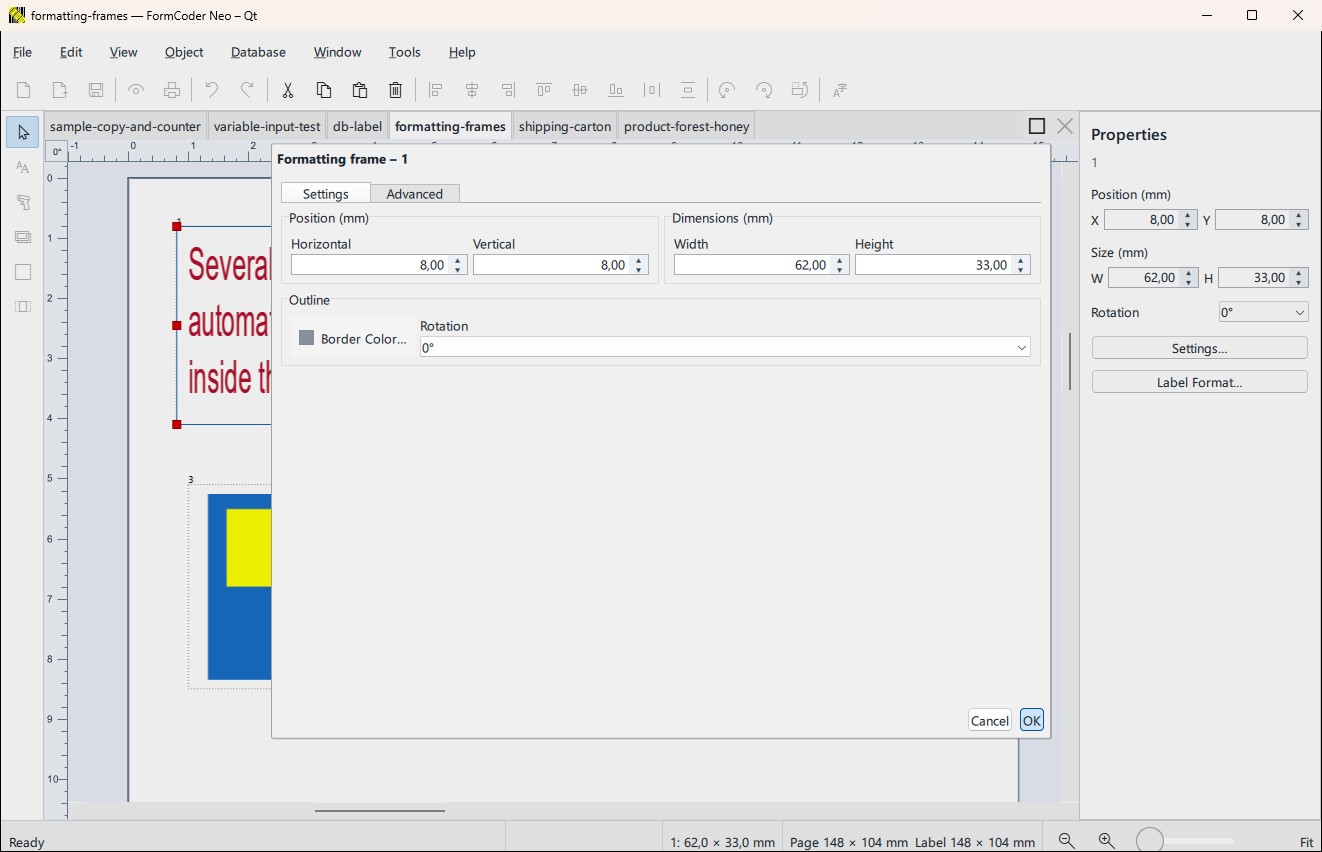
Settings for Formatting Frame 1 with position, dimensions, border color and rotation
Formatting frameAssign objects to a frame and position them together. Its guide outline appears in the editor.
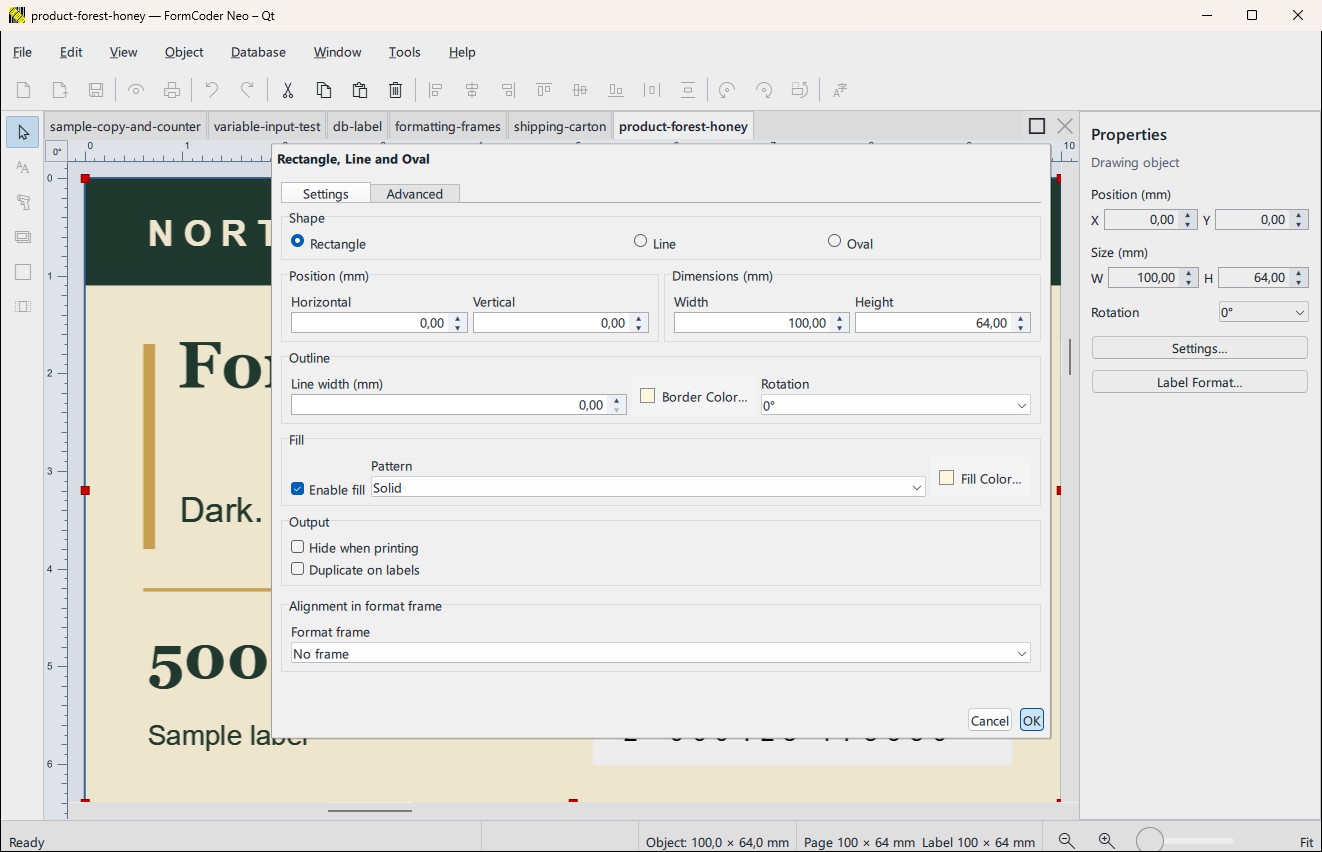
Rectangle, Line and Oval dialog with settings for shape, outline, fill and output
Drawing objectsAdd rectangles, lines and ovals with adjustable outline and fill.
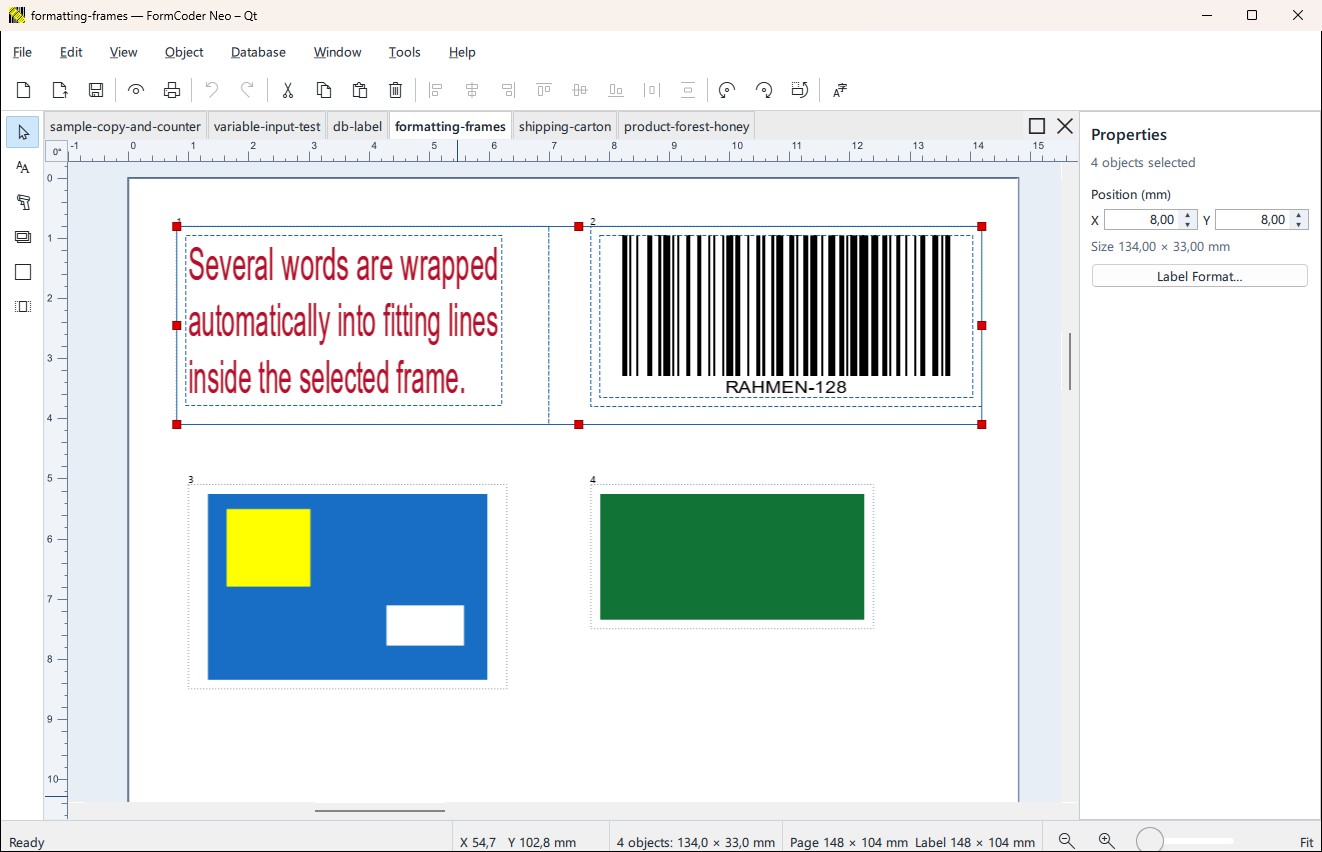
FormCoder work area with four objects selected at once: a text, a Code 128 barcode and two formatting frames, with “4 objects selected” in the properties panel
Object selectionSelect several objects and move or align them together.

Barcodes and GS1

42 barcode types at a glance

Choose the code that fits the application and the required input. In the editor, you set the size, frame fitting and human-readable text. The data can be entered as fixed values or taken from fields, counters and databases.

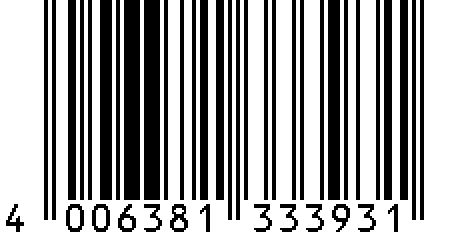
Linear EAN-13 barcode
EAN-13Item number in retail
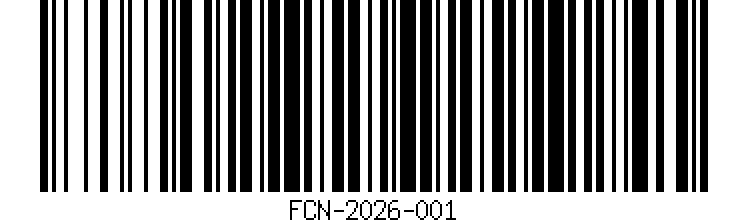
Linear Code 128 with bars of different widths
Code 128Internal serial number
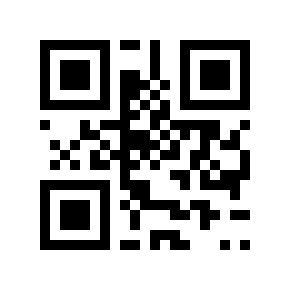
Square QR code with three corner markers
QR CodeText or web address
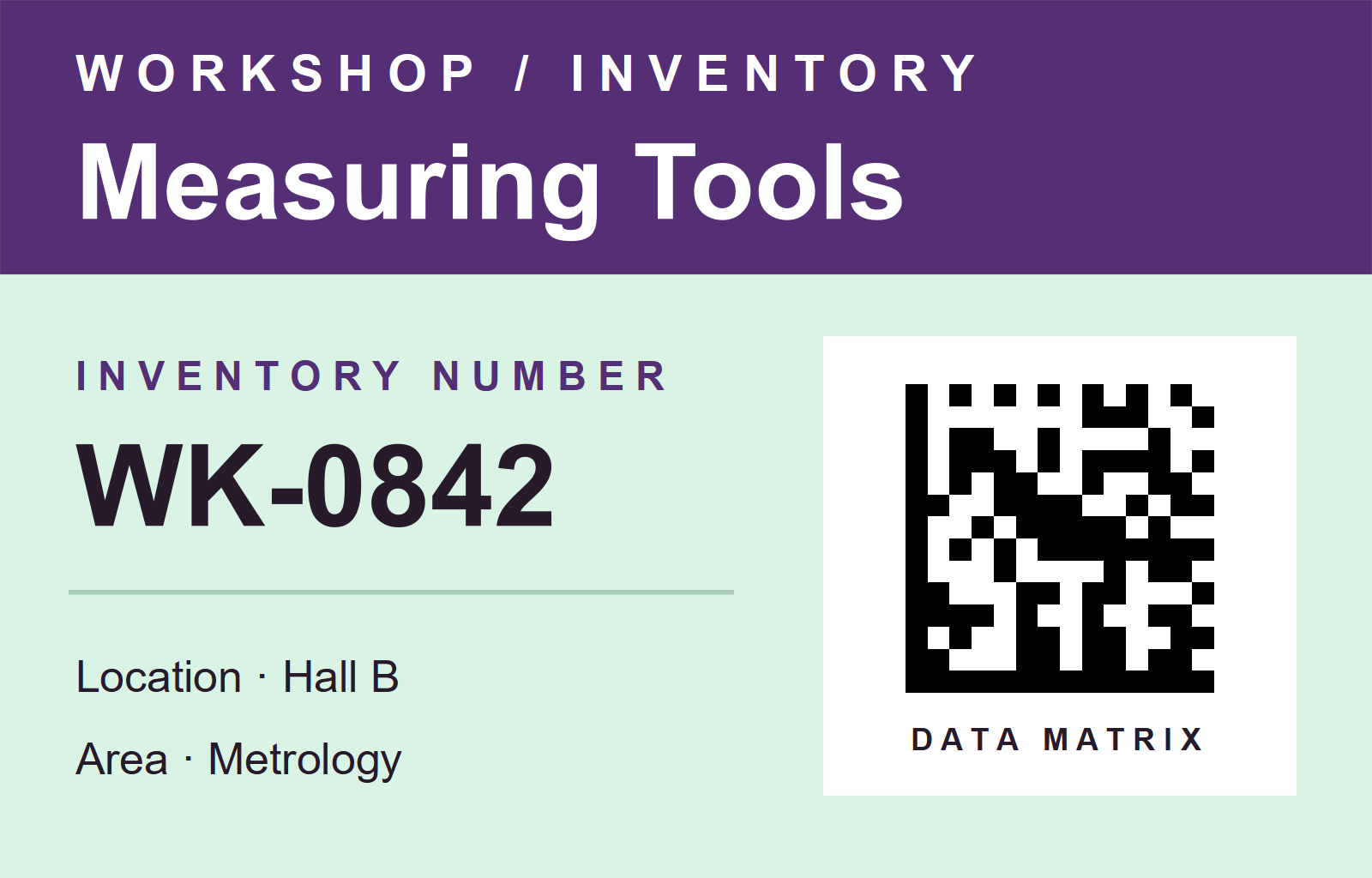
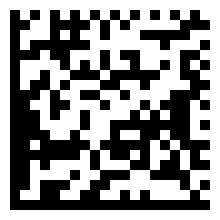
Square GS1 DataMatrix with an L-shaped border pattern
GS1 DataMatrixGTIN, batch and expiry date

EAN and UPC

Standard retail item codes with or without a two- or five-digit add-on.

  • EAN-13
  • EAN-8
  • UPC-A
  • UPC-E

The complete number has 13, 8, 12 or 8 digits respectively. FormCoder can add the missing check digit. UPC-E starts with 0 or 1.

  • EAN-13 + 2
  • EAN-13 + 5
  • EAN-8 + 2
  • EAN-8 + 5
  • UPC-A + 2
  • UPC-A + 5
  • UPC-E + 2
  • UPC-E + 5

Enter the add-on separately. It consists of exactly two or five digits.

Other linear codes

For item numbers, serial numbers and other numeric or alphanumeric content.

  • Code 128 auto
  • Code 128 A
  • Code 128 B
  • Code 128 C

The automatic mode chooses the character set. A and B cover different ASCII ranges. C requires an even number of digits.

  • Code 39
  • Code 93

Code 39 encodes uppercase letters, digits and selected special characters. Code 93 supports ASCII including lowercase letters.

  • Standard 2 of 5
  • Interleaved 2 of 5

Both expect digits. Interleaved requires an even number of digits.

  • Codabar
  • POSTNET

Codabar uses digits, selected special characters and start/stop characters. POSTNET encodes US ZIP codes.

  • Code 11
  • MSI Plessey
  • Pharmacode

Code 11 encodes digits and the hyphen, MSI Plessey encodes digits for warehouses and shelves. Pharmacode is a control code for packaging with a number from 3 to 131070.

Matrix and stacked codes

More characters in a small area, depending on the symbol and content.

  • Data Matrix
  • QR Code

Both support UTF-8 text and line breaks. FormCoder creates square Data Matrix symbols.

  • Micro QR
  • Aztec

Micro QR is intended for short content. With Aztec, the size depends on the amount of data.

  • PDF417
  • MicroPDF417

Stacked codes. MicroPDF417 is intended for compact symbols with shorter input.

  • DotCode
  • MaxiCode
  • Han Xin

DotCode consists of dots and is suited to high-speed inkjet printing. MaxiCode carries structured shipping data with up to 93 characters. Han Xin is a matrix code with selectable error correction.

GS1 formats

Structured data with GS1 application identifiers for values such as GTIN, batch or expiry date.

  • GS1-128
  • GS1 DataMatrix
  • GS1 QR

Fixed values can be entered with their application identifiers in the GS1 application identifier window.

  • GS1 DataBar Omnidirectional
  • GS1 DataBar Limited
  • GS1 DataBar Expanded
  • GS1 DataBar Expanded Stacked
  • GS1 DataBar Stacked Omni

Compact GS1 codes for small items. Omnidirectional, Limited and Stacked Omni encode a GTIN. Expanded expects application identifiers in parentheses, for example (01)09501101530003(3103)000123.

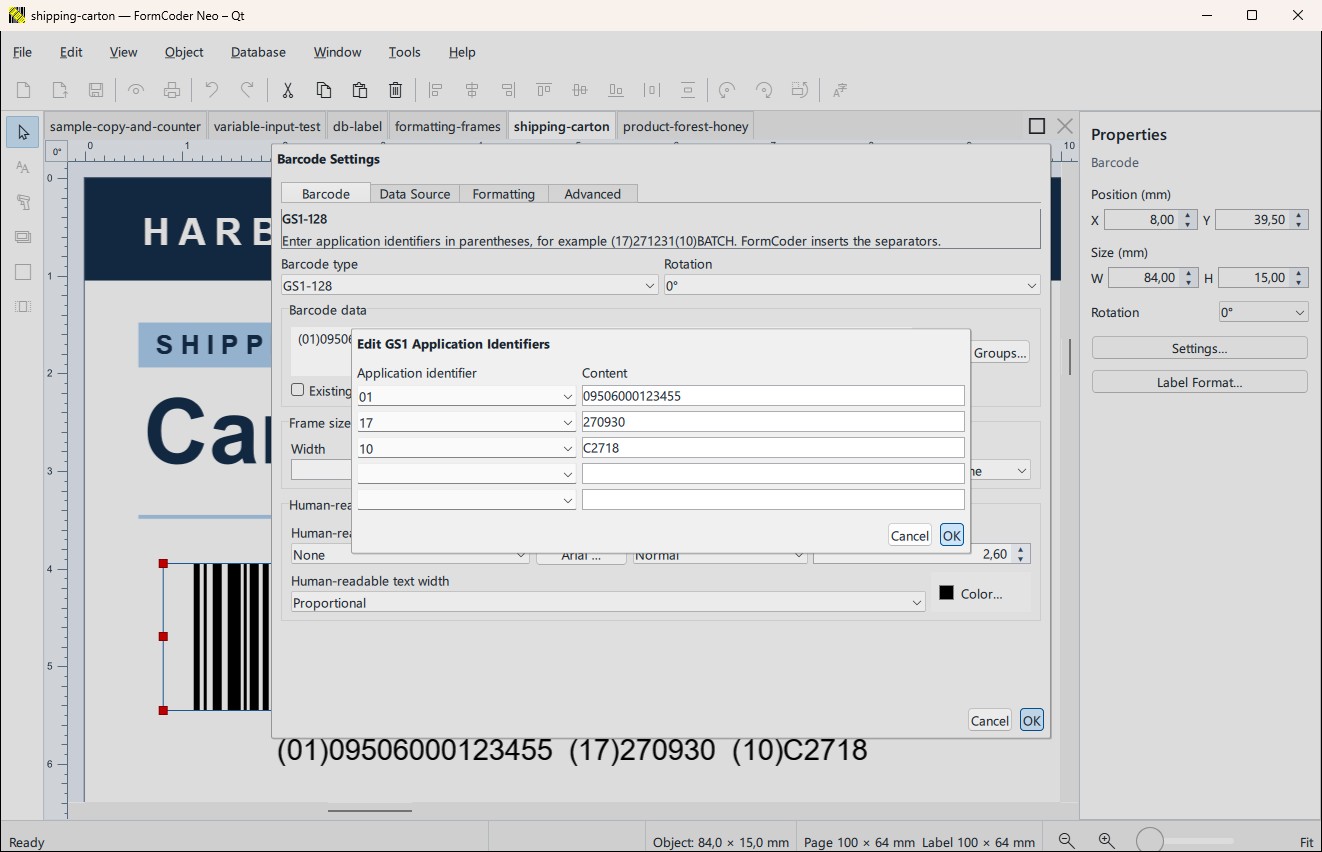
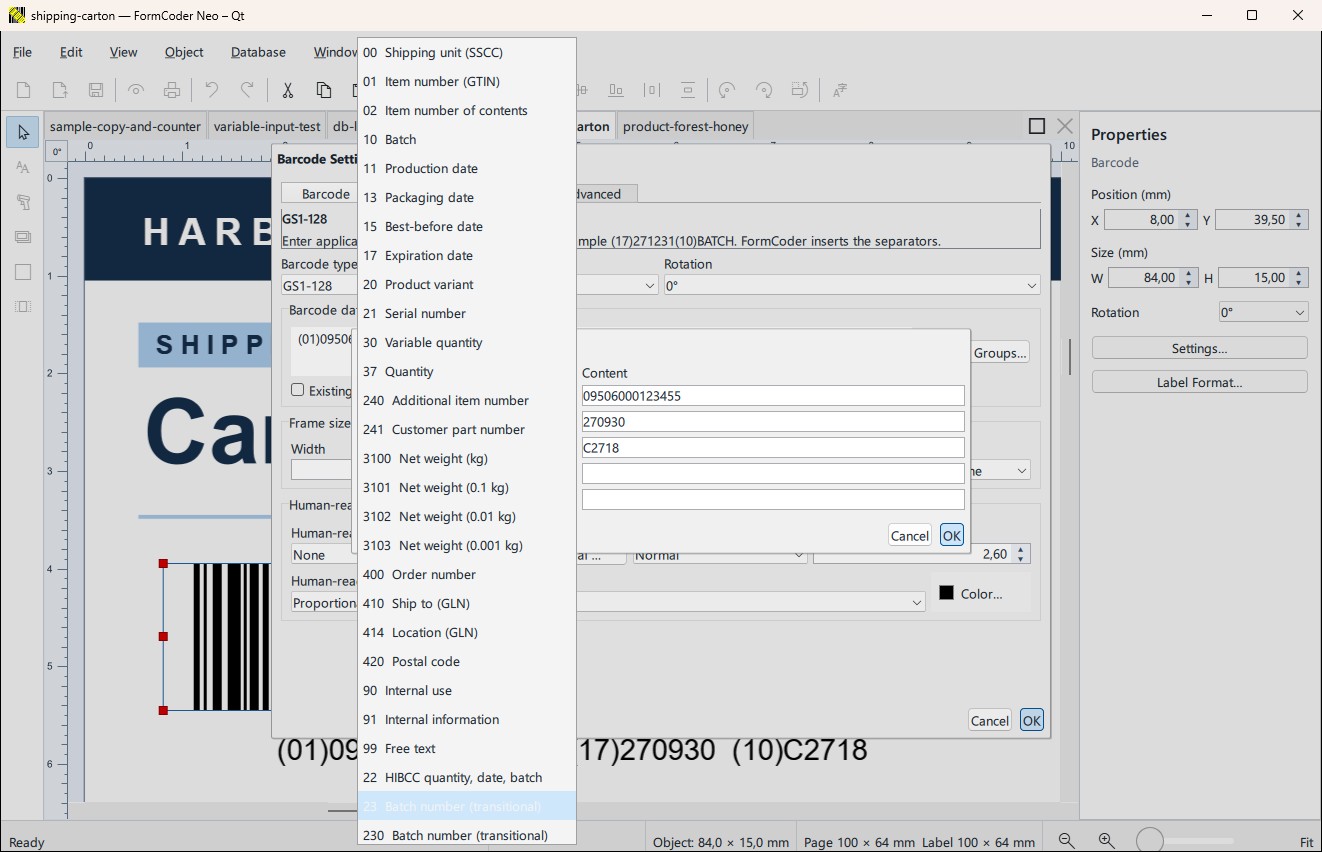
The GS1 application identifier window

In this window, you enter GTIN, batch and expiry date on separate rows. FormCoder checks the values and inserts the required field separators when encoding.

  1. In the barcode settings, choose GS1-128, GS1 DataMatrix or GS1 QR. Open Edit GS1 Groups….
  2. On the left, choose or type the Application identifier, and enter its Content on the right. The window offers up to five rows for fixed values.
  3. Confirm both dialogs with OK. In the print preview, you can check the barcode and its human-readable text.

You can enter further groups directly in the Barcode data field. There, each application identifier is written in parentheses.

If Existing check digits in the GS1 group editor is turned off, FormCoder can add a missing check digit for (00), (01) or (02).

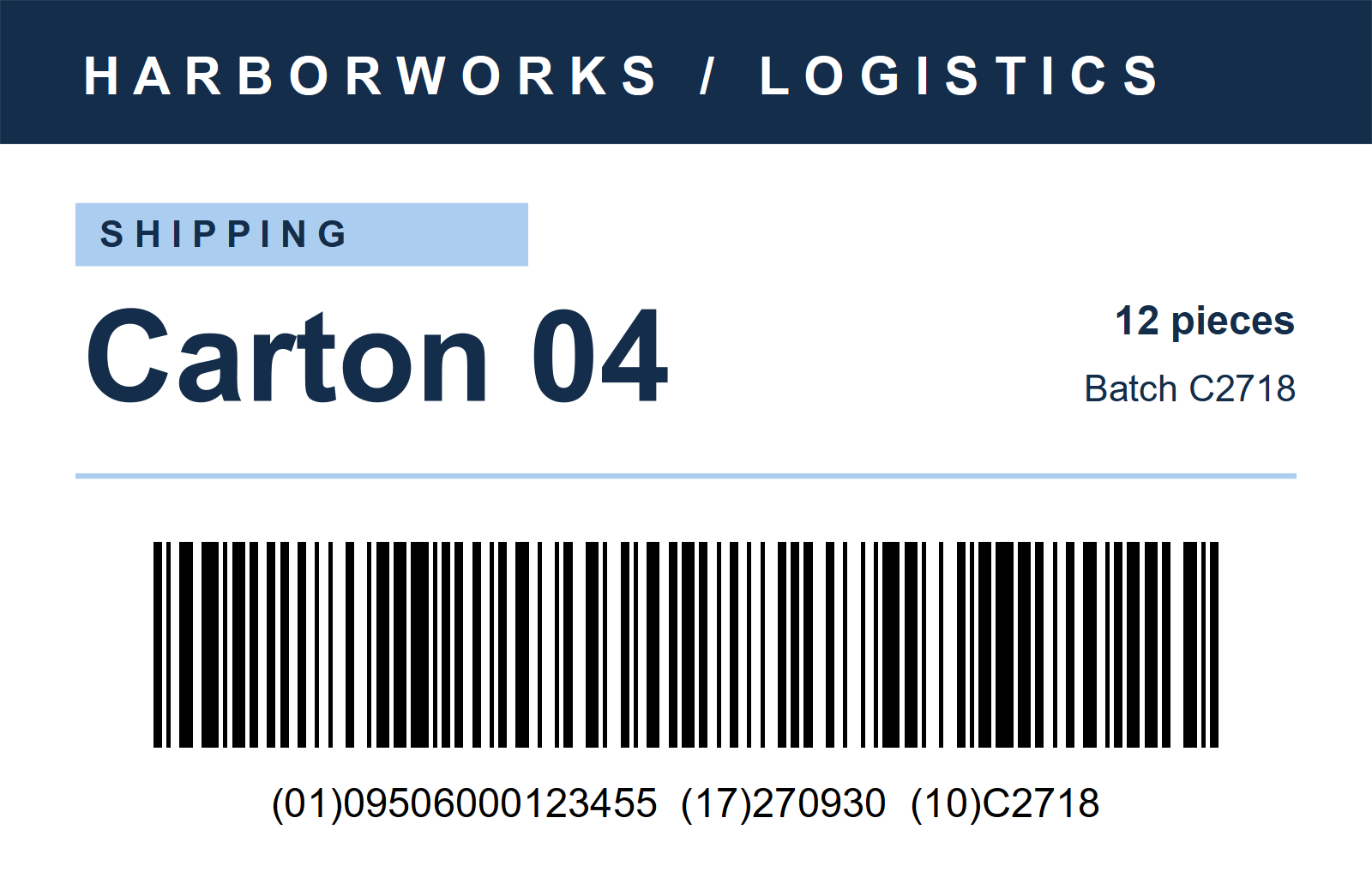
Original screenshot of the Edit GS1 Application Identifiers window for the GS1-128 barcode on the shipping carton label, with five rows, three of them filled with 01 (GTIN), 17 (expiry date) and 10 (batch)
Original screenshot from FormCoder Neo. Click to open it at full size.
(01) GTIN
09506000123455
(10) Batch
C2718
(17) Expiry date
270930 (September 30, 2027)
See the list of application identifiers

A look inside the software

How you work with FormCoder Neo

One layout for your labels

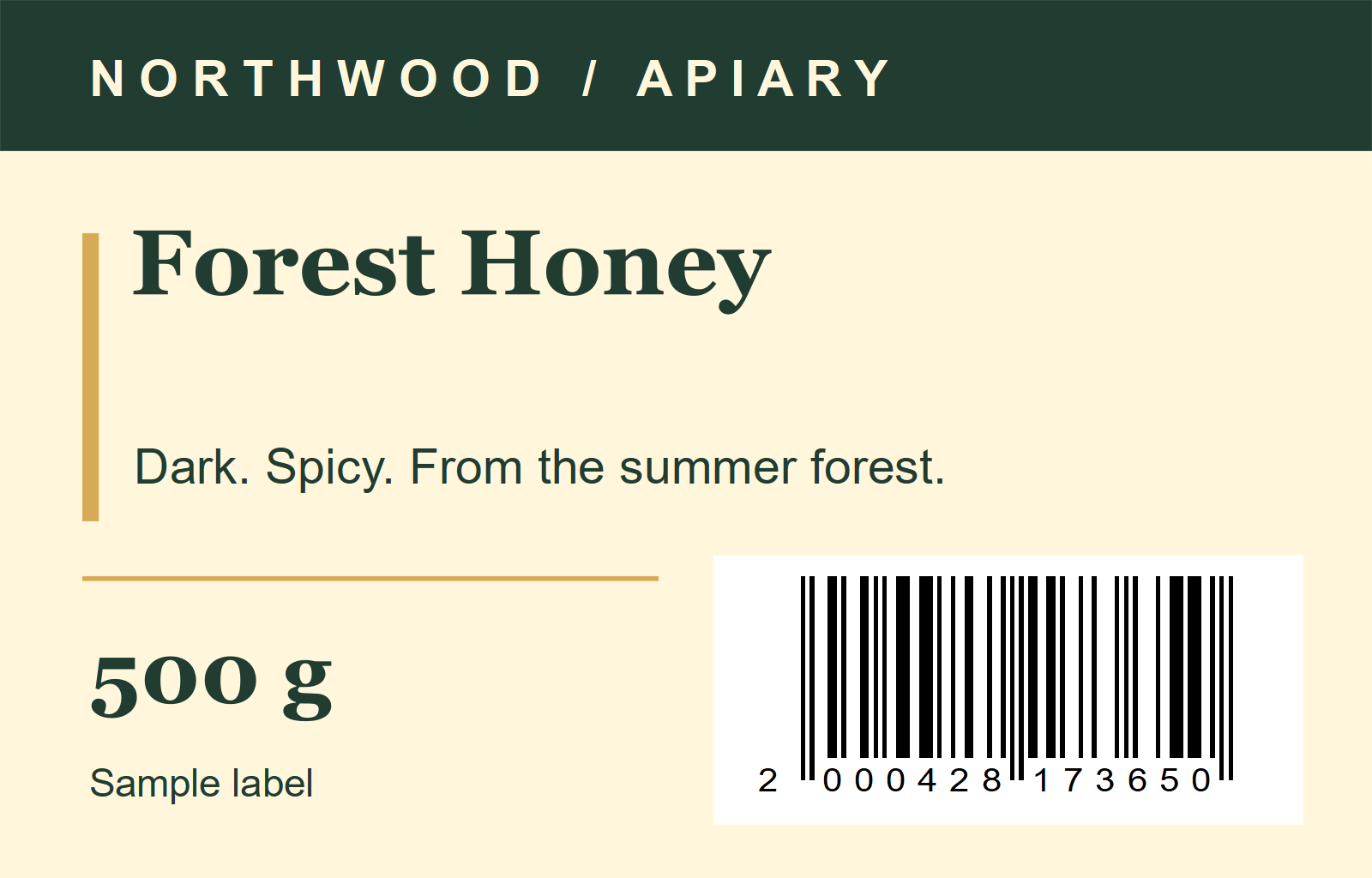
The sample label combines text, a barcode and colored areas. For the selected object, you set position and dimensions directly in the properties.

Full-size screenshot
FormCoder editor with the Forest Honey label, the selected title text, its selection frame and eight handles

One design, many items

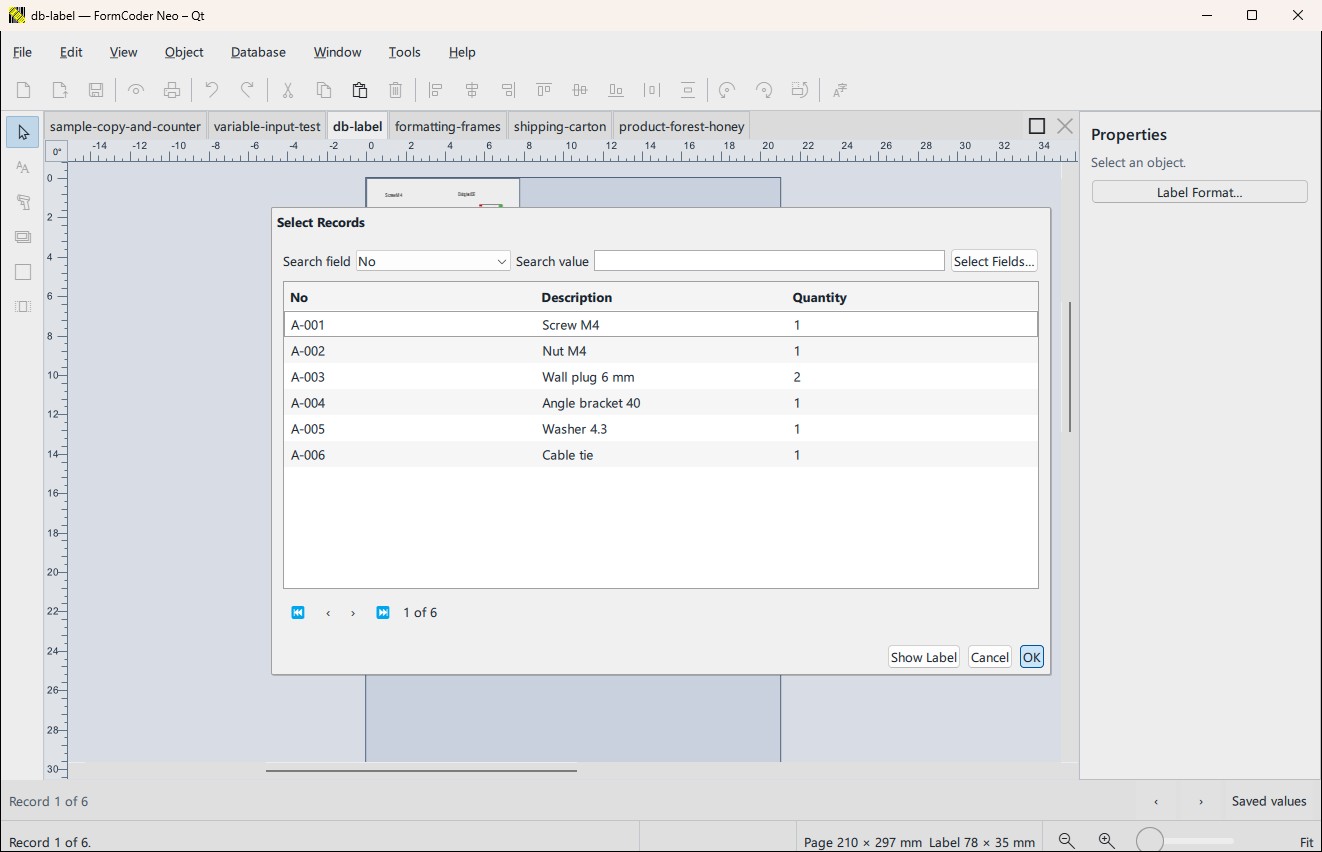
Link label fields to the columns of your item table. Search for the records you need and mark your selection for serial printing.

Full-size screenshot
FormCoder window for selecting records with six item records such as Screw M4 and Nut M4

Linked labels in the print preview

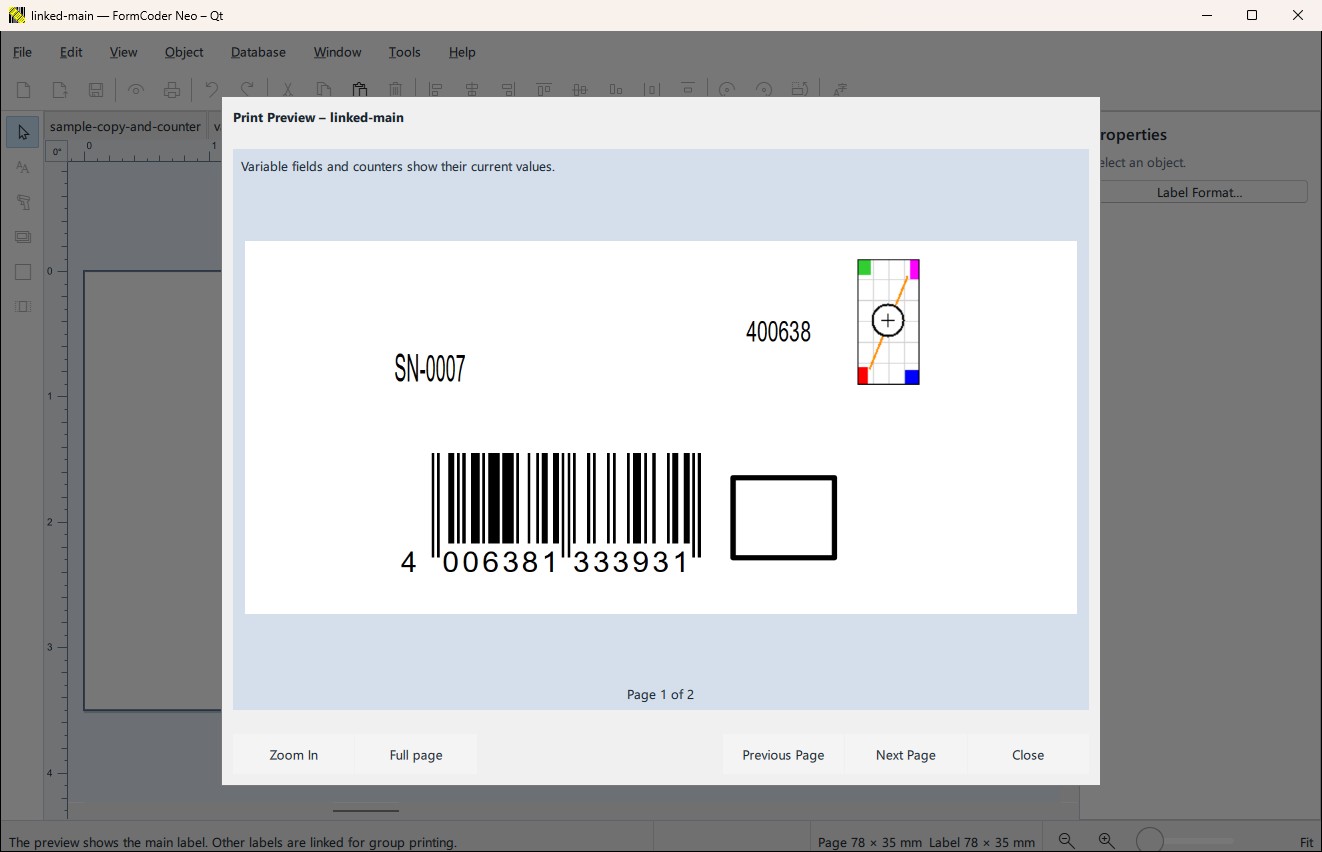
The sample combines a serial number, an EAN-13, a graphic and a drawing object, and it is linked to a follow-up label. In the print preview, you see the finished labels page by page with their current values.

Full-size screenshot
FormCoder Print Preview of a linked label group, page 1 of 2, with serial number SN-0007, an EAN-13 barcode and a graphic

From template to first print job

The illustrated guide shows the steps for layout, variable data, databases and printing.

Open the Practical Guide

FAQ

Frequently asked questions

How long can I try FormCoder Neo?

On Windows and Linux, the 30-day trial period begins when you first start the program without a license. A trial period already started in the earlier VCL edition continues. The remaining days are shown under “Help → About FormCoder Neo…”. You activate the program with “Help → Register…”.

Where can I find the program help?

On Windows and Linux, open the built-in help with “Help → Program Help” or F1. In supported dialogs, F1 takes you to the matching topic. On this website, the Practical Guide offers an illustrated introduction. If the interface is set to English, the English help opens.

Is FormCoder Neo available in English?

Yes. FormCoder Neo Qt for Windows and Linux and the classic Windows version 1.0.24.0 and later have an English and a German interface, including the program help. At first start, the language follows the operating system; you can switch at any time with “View → Sprache / Language”, and in FormCoder Neo Qt also on the “View” tab of the program settings.

Can I use label printers for rolls and regular printers?

Yes. FormCoder Neo prints label rolls on direct thermal and thermal transfer label printers. For suitable label sheets, you can use a regular laser or inkjet printer. The printer must be set up with its driver in the operating system. See printers and the A4 sheet

Can I reuse partially used label sheets?

Yes. In the print dialog, choose the first free start position. The selection applies to the first sheet. The preview shows which positions will be used.

How do I print an A4 sheet with sequential numbers and changing batches?
  1. Set up the sheet. Open File → Label Format. On the Page tab, turn off the automatic page size and choose A4. On the Label tab, set the dimensions, grid and gaps. Select all recurring objects and press F9 (Repeat on other labels).
  2. Prepare serial numbers and batches. Create a CSV file with semicolons as separators, the header row SerialNumber;Batch and one row per label, such as 0001;LOT-A and 0002;LOT-B. Leading zeros must already be in the CSV.
  3. Connect the data. Import the CSV into SQLite with Database → Create or Edit Database… and link the file with Database → Define Connection…. For each of the two text objects, assign the matching column under Data Source → Database field and choose Text as the field type.
  4. Print one record per label. Under File → Label Format → Database, choose the mode Change record within the page. Open Database → Print Records → Select Start Label…. Set the printer, the record range and the first free label position. Check numbers and batches in the Preview and start printing. FormCoder fills each column from top to bottom.

Open the illustrated guide with a CSV example and finished A4 sheet

Can I save a print job as a PDF without a printer?

Yes. “Save Print PDF…” outputs the entire job with data, quantities and linked follow-up labels. For the label page currently shown, use “File → Export PDF…”.

Can FormCoder add a missing barcode check digit?

For EAN and UPC, FormCoder can calculate the missing check digit if “Check digit included” is turned off. With the appropriate setting, the GS1 group editor does the same for the application identifiers (00), (01) and (02). The input lengths are listed in the barcode overview.

Can I use items from a CSV file for printing?

Yes. Import the file in the SQLite dialog under “Create or Edit Database…”. The first row contains the column names, and the import expects semicolons as separators. Then link text or barcode fields to the imported columns. Store item numbers with leading zeros as text in the source.

Can I connect an existing server database?

Yes, if the matching Qt SQL driver and, if required, the client library are installed. For ODBC, you also need a configured data source (DSN). In the connection dialog, you can test access and the query before printing.

Can I use a scanner for recurring print jobs?

Yes. Create the required fields as user input and turn on “Repeat entry (scanner)”. A scan can trigger the next job for the main label and its follow-up labels. This requires a printer set up in the operating system.

Does the print preview use up serial numbers?

The preview and the print PDF calculate the number sequence for the job and leave the saved counter values unchanged. When you print directly, global counter values are reserved for each sheet started.

How do I get a label as an image file?

“File → Export as Graphic…” saves the selected objects or, if nothing is selected, the designed label content at 300 dpi. PNG, JPEG and BMP are available. With the ETK file, the layout remains editable.

Which older label files can I use?

FormCoder Neo opens Neo ETK files of versions 11 to 17 and imports older KRUG labels of versions 6, 10 and 11. When you first save an imported label, FormCoder suggests a separate file with the suffix _Neo.etk.

Why can an older FormCoder version no longer open my label?

If a label uses one of the extended features, such as input rules, a free date mask or one of the new barcode types, FormCoder saves it as ETK version 17. These files can be opened by FormCoder Neo Qt 0.14.0 and by the classic Windows version 1.0.23.0 and later. Labels without these settings remain version 16 and can still be opened with older versions.

How do I print a best-before date?

For the text object, choose the data source “Date and time” and a free date mask, for example TT.MM.JJJJ. Enter the shelf life in days, months or years as the offset, such as 6 months. FormCoder recalculates the date for every print. In the German-only classic Windows version, you find the mask and offset under “Objekt → Erweitert…”.

What should I check if the printout is misaligned on the sheet?

Compare paper size, orientation, sheet grid, gaps and margins with the actual sheet. For PDF output, also check the “Actual size” or 100 percent setting in the PDF print dialog. You compensate for an even shift with the printer’s print offset.

Why does my label printer print the label offset?

Often the page is wider than the print head. A 4-inch printer prints at most 101.6 mm wide, even if it feeds wider media up to about 108 mm. Set the page width to no more than the print width. The Qt version shows the print width below the page size and in “Printer Info”, where you can correct it if needed.
Questions about FormCoder Neo?

Write to us if you would like to know how FormCoder Neo fits your label printing.

Send an email